
Create, customize, preview, and print professional checks.
Manage personal or business payer profiles, bank accounts, payees, amounts, signatures, templates, MICR information, PDF output, and register records from one guided Windows workflow.
Choose an edition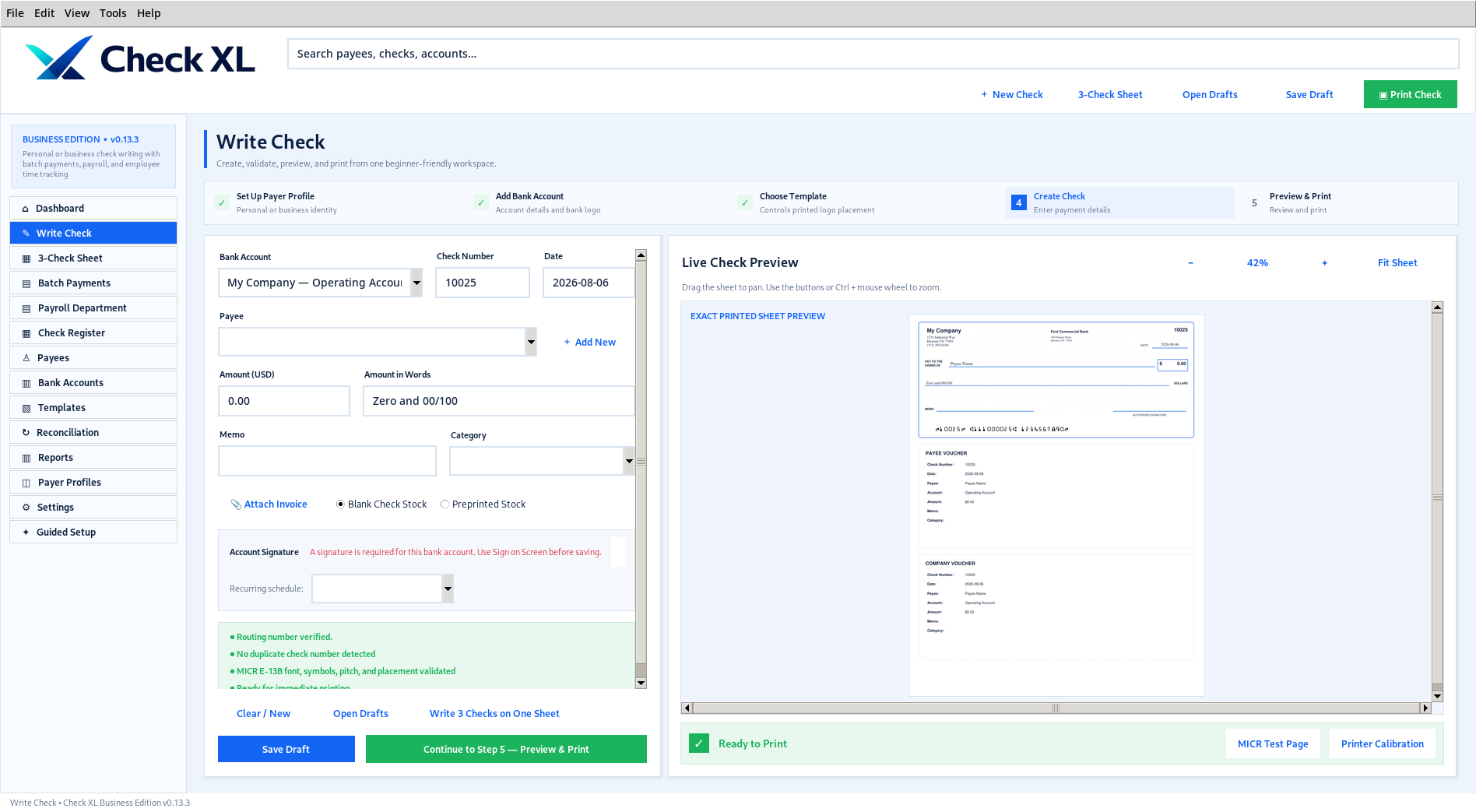
Guided, visible workflow
The Windows workspace opens maximized. Write Check keeps its complete action footer visible while the payment fields scroll independently.
Zoomable exact preview
Review output from the same renderer used for final PDFs. Zoom in or out, fit the sheet, drag to pan, or use Ctrl + mouse wheel.
MICR tools
Use MICR E-13B output, routing validation, test pages, and printer calibration guidance.
Professional output and records
- Automatic amount-in-words conversion
- Check-number tracking and duplicate prevention
- Payee and bank-account databases
- Company logos stored with Business payer profiles and bank logos stored with bank accounts
- Required per-account signatures captured with Sign on Screen
- Memo, categories, and attachments in supported editions
- More than 50 seeded document layouts
- Single checks and three checks per page
- Top, middle, and bottom checks with stubs
- Voucher, remittance, payroll, and security styles
- Blank and preprinted stock
- Check register and reconciliation
Window and button visibility: Personal, Professional, Business, and Enterprise open the main workspace maximized. The Write Check form uses a fixed two-row action footer so Clear / New, Open Drafts, Write 3 Checks on One Sheet, Save Draft, and Continue to Step 5 — Preview & Print remain visible even when the Live Check Preview is open.
Signature workflow: Each bank account requires its own authorized signer and valid signature captured inside Add/Edit Bank Account. The Bank Accounts list and Write Check screen do not import, draw, or clear signatures. Checks automatically use the signature stored with the selected account.
Logo workflow: A company logo is added only while creating or editing a Business payer profile. A bank logo is added only while creating or editing a bank account. The Write Check screen does not upload either logo; the selected check template controls whether each logo prints and where it is positioned. Bank-logo selection is available in Personal, Professional, Business, and Enterprise.
Bank requirements vary. Users must verify printer, toner or ink, check stock, magnetic signal, and bank-specific requirements before issuing negotiable checks.